 OnlyLoader
คู่มือฉบับสมบูรณ์เกี่ยวกับวิธีการให้ทิปบน OnlyFans

OnlyFans เปิดโอกาสให้แฟนๆ สนับสนุนครีเอเตอร์ที่ชื่นชอบได้หลายวิธี ตั้งแต่การจ่ายค่าสมัครสมาชิกและการซื้อคอนเทนต์แบบล็อกไว้ ไปจนถึงการให้ทิป การให้ทิปเป็นวิธีง่ายๆ ในการแสดงความชื่นชมผลงานของครีเอเตอร์ ขอบคุณสำหรับโพสต์ใดโพสต์หนึ่ง หรือให้การสนับสนุนทางการเงินเพิ่มเติม นอกเหนือจากค่าสมัครสมาชิกปกติ
สำหรับผู้ใช้ OnlyFans มือใหม่ อาจไม่คุ้นเคยกับขั้นตอนการให้ทิป นอกจากนี้ คุณอาจสงสัยว่าควรให้ทิปเท่าไหร่ สามารถให้ทิปผ่านโพสต์หรือข้อความได้หรือไม่ และครีเอเตอร์จะได้รับเงินจากทิปของคุณเท่าไหร่หลังจาก OnlyFans หักค่าธรรมเนียมแพลตฟอร์มแล้ว
คู่มือนี้อธิบายวิธีการให้ทิปบน OnlyFans วิธีการทำงานของค่าธรรมเนียมการให้ทิปของแพลตฟอร์ม และสิ่งที่คุณควรรู้ก่อนส่งเงิน นอกจากนี้ยังแนะนำตัวเลือกที่สะดวกสำหรับการสำรองข้อมูลสื่อของครีเอเตอร์ที่คุณได้รับอนุญาตให้ดาวน์โหลดอีกด้วย
1. วิธีการให้ทิปบน OnlyFans?
หน้าจอแสดงผลอาจเปลี่ยนแปลงได้เมื่อ OnlyFans อัปเดตเว็บไซต์ แต่โดยทั่วไปแล้วกระบวนการให้ทิปนั้นไม่ซับซ้อน
1) เข้าสู่ระบบบัญชี OnlyFans ของคุณ
ขั้นแรก เข้าไปที่ OnlyFans และลงชื่อเข้าใช้บัญชีของคุณ คุณต้องมีบัญชีที่ใช้งานอยู่และวิธีการชำระเงินที่ใช้งานได้เพื่อส่งทิป
หากคุณยังไม่ได้เพิ่มวิธีการชำระเงิน โปรดทำตามคำแนะนำการชำระเงินที่แสดงอยู่ในหน้าการตั้งค่าบัญชีของคุณ โปรดตรวจสอบให้แน่ใจว่ารายละเอียดการชำระเงินของคุณถูกต้องก่อนทำการชำระเงิน
2) ค้นหาครีเอเตอร์ที่คุณต้องการสนับสนุน
เข้าไปที่โปรไฟล์ของครีเอเตอร์ คุณสามารถค้นหาครีเอเตอร์ได้จากกลุ่มผู้ติดตาม ข้อความ หรือส่วนอื่นๆ ของแพลตฟอร์ม
เมื่อคุณเปิดโปรไฟล์ของครีเอเตอร์แล้ว ให้เลื่อนดูโพสต์ต่างๆ เพื่อค้นหาเนื้อหาหรือการมีปฏิสัมพันธ์ที่คุณต้องการสนับสนุน บางโพสต์อาจมีตัวเลือกการให้ทิปโดยเฉพาะ
3) เลือกตัวเลือกทิป
เมื่อมีตัวเลือกให้ทิป โปรดมองหาตัวเลือกนั้น เคล็ดลับ ปุ่มหรือไอคอนให้ทิปที่เชื่อมโยงกับโพสต์หรือการโต้ตอบของผู้สร้าง
คลิกหรือแตะตัวเลือกเพื่อเปิดหน้าต่างการให้ทิป หากคุณไม่พบตัวเลือกการให้ทิป อาจเป็นไปได้ว่าไม่สามารถให้ทิปได้สำหรับโพสต์หรือการโต้ตอบนั้นๆ
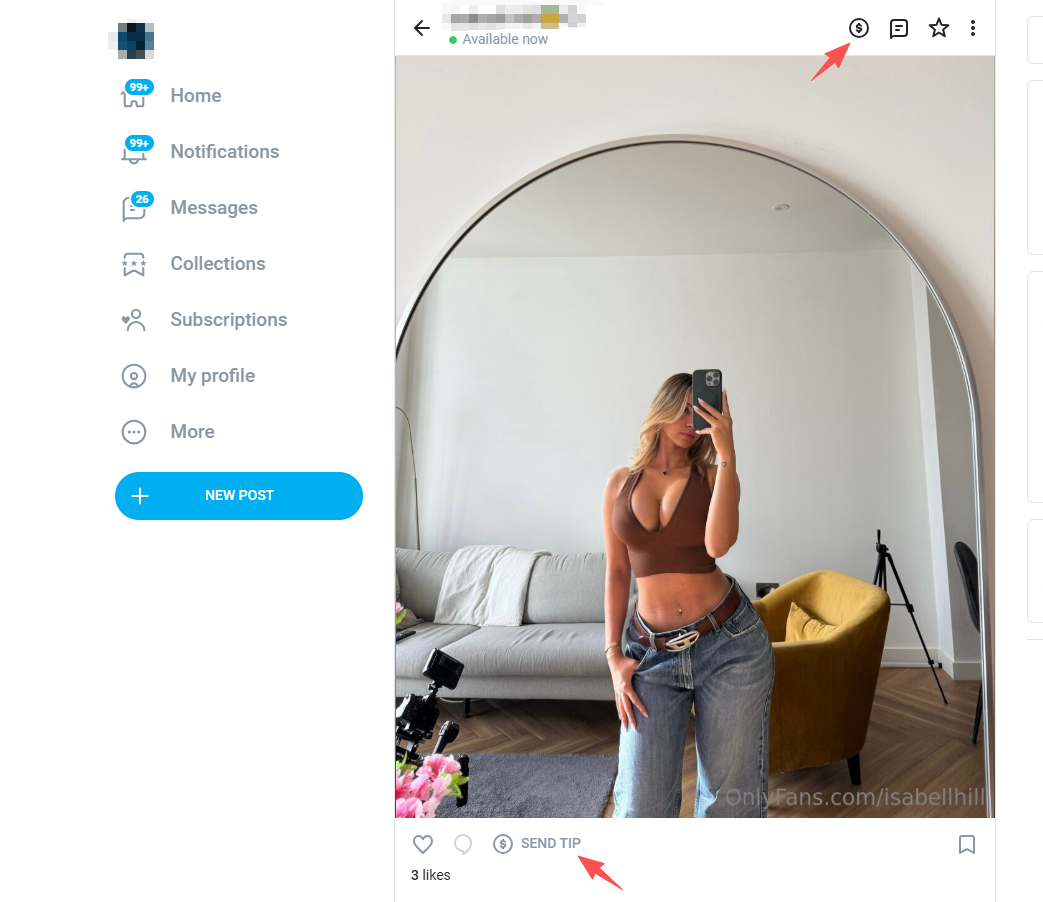
4) กรอกจำนวนเงินทิปของคุณ
ป้อนจำนวนเงินที่คุณต้องการส่ง จำนวนเงินที่คุณเลือกนั้นขึ้นอยู่กับคุณโดยสมบูรณ์ โดยอยู่ภายใต้ข้อจำกัดจำนวนเงินขั้นต่ำหรือสูงสุดที่แพลตฟอร์มกำหนดไว้
ไม่มีจำนวนเงินทิปที่ "ถูกต้อง" อย่างตายตัว การให้ทิปจำนวนน้อยอาจเหมาะสมสำหรับการแสดงความขอบคุณอย่างสุภาพ ในขณะที่คุณอาจเลือกให้มากกว่านั้นเมื่อคุณชื่นชอบผลงานของผู้สร้างสรรค์เป็นพิเศษ หรือต้องการให้การสนับสนุนเพิ่มเติม
ก่อนดำเนินการต่อ โปรดตรวจสอบจำนวนเงินที่คุณป้อนอย่างละเอียด การพิมพ์ผิดเพียงเล็กน้อยอาจทำให้คุณต้องจ่ายเงินมากกว่าที่ตั้งใจไว้
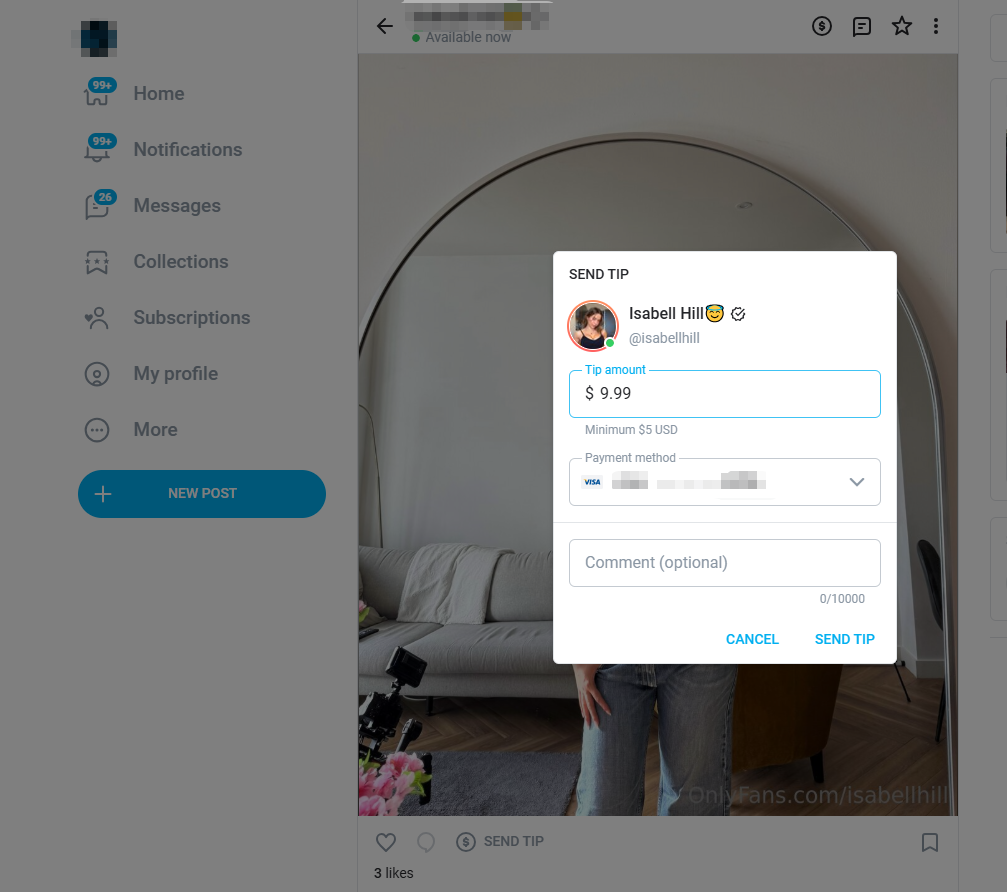
5) เพิ่มข้อความ
ขึ้นอยู่กับสถานที่ที่คุณให้ทิป คุณอาจสามารถใส่ข้อความไปพร้อมกับทิปได้
ข้อความสั้นๆ ที่สุภาพจะช่วยให้การสนับสนุนของคุณมีความเป็นส่วนตัวมากขึ้น ตัวอย่างเช่น คุณอาจขอบคุณผู้สร้างสำหรับโพสต์ที่คุณชื่นชอบ หรือบอกพวกเขาว่าคุณชื่นชมผลงานของพวกเขา
โปรดจำไว้ว่า การให้ทิปไม่ได้เป็นการรับประกันว่าจะได้รับการตอบกลับ เนื้อหาที่ออกแบบเฉพาะ หรือบริการอื่น ๆ โดยอัตโนมัติ เว้นแต่ผู้สร้างจะระบุไว้อย่างชัดเจนว่ามีบริการดังกล่าว
6) ยืนยันคำแนะนำ
โปรดตรวจสอบรายละเอียดการทำธุรกรรม รวมถึงจำนวนเงิน ก่อนยืนยันการชำระเงิน
เมื่อคุณอนุมัติธุรกรรมแล้ว เงินทิปจะถูกประมวลผลผ่านบัญชี OnlyFans ของคุณ เนื่องจากเงินทิปเกี่ยวข้องกับเงินจริง จึงควรตรวจสอบการใช้จ่ายของคุณเป็นประจำและตรวจสอบให้แน่ใจว่ายอดรวมการใช้จ่ายของคุณอยู่ในงบประมาณที่ตั้งไว้
2. OnlyFans หักเงินจากทิปไปเท่าไหร่?
หนึ่งในคำถามที่พบบ่อยที่สุดจากแฟนๆ และครีเอเตอร์คือ OnlyFans หักเงินทิปไปเท่าไหร่
โดยทั่วไป OnlyFans จะหักค่าธรรมเนียมแพลตฟอร์ม 20% จากการชำระเงินของแฟนๆ ในขณะที่ผู้สร้างเนื้อหาจะได้รับส่วนที่เหลือ 80%
ตัวอย่างเช่น หากคุณให้ทิป 20 ดอลลาร์ การคำนวณโดยทั่วไปจะเป็นดังนี้:
- คำแนะนำจากแฟนคลับ: 20 ดอลลาร์
- ค่าธรรมเนียมแพลตฟอร์ม OnlyFans (20%): 4 ดอลลาร์
- ส่วนแบ่งของผู้สร้างสรรค์ (80%): 16 ดอลลาร์
ต่อไปนี้เป็นตัวอย่างเพิ่มเติมอีกเล็กน้อย:
| จำนวนเงินทิป | 20% ของ OnlyFans | ผู้สร้าง 80% |
|---|---|---|
| 5 ดอลลาร์ | 1 ดอลลาร์ | 4 ดอลลาร์ |
| 10 ดอลลาร์ | 2 ดอลลาร์ | 8 ดอลลาร์ |
| 20 ดอลลาร์ | 4 ดอลลาร์ | 16 ดอลลาร์ |
| 50 ดอลลาร์ | 10 ดอลลาร์ | 40 ดอลลาร์ |
| 100 ดอลลาร์ | 20 ดอลลาร์ | 80 เหรียญสหรัฐ |
หมายความว่าจำนวนเงินที่คุณจ่ายและจำนวนเงินที่ผู้สร้างได้รับในท้ายที่สุดนั้นแตกต่างกัน ค่าธรรมเนียมแพลตฟอร์ม 20% จะถูกหักออกก่อนที่ผู้สร้างจะได้รับส่วนแบ่งของตน
ผู้สร้างสรรค์ผลงานอาจมีภาระภาษีหรือข้อพิจารณาทางการเงินอื่นๆ ของตนเอง ดังนั้นตัวเลข 80% จึงไม่ควรตีความว่าเป็นรายได้สุทธิหลังหักภาษีของพวกเขาเสมอไป
3. โบนัส: การสำรองข้อมูล/ดาวน์โหลดสื่อ Creator จำนวนมาก OnlyLoader
หากคุณติดตามครีเอเตอร์เป็นประจำและเข้าถึงสื่อจำนวนมาก การบันทึกไฟล์ทีละไฟล์ด้วยตนเองอาจไม่สะดวก โปรแกรมดาวน์โหลดแบบกลุ่มโดยเฉพาะจะช่วยให้การจัดเก็บข้อมูลส่วนตัวง่ายขึ้นมากเมื่ออนุญาตให้ดาวน์โหลดได้
OnlyLoader ออกแบบมาเพื่อช่วยผู้ใช้ตรวจจับและดาวน์โหลดไฟล์มีเดียหลายไฟล์ได้อย่างมีประสิทธิภาพมากขึ้น แทนที่จะเปิดโพสต์แต่ละโพสต์และบันทึกไฟล์แยกกันซ้ำๆ คุณสามารถใช้เวิร์กโฟลว์แบบกลุ่มเพื่อจัดการคอลเลกชันขนาดใหญ่ได้
ขั้นตอนการใช้ OnlyLoader -
- รับ OnlyLoader ติดตั้งและเริ่มต้นใช้งานบนคอมพิวเตอร์ Windows หรือ Mac ของคุณ
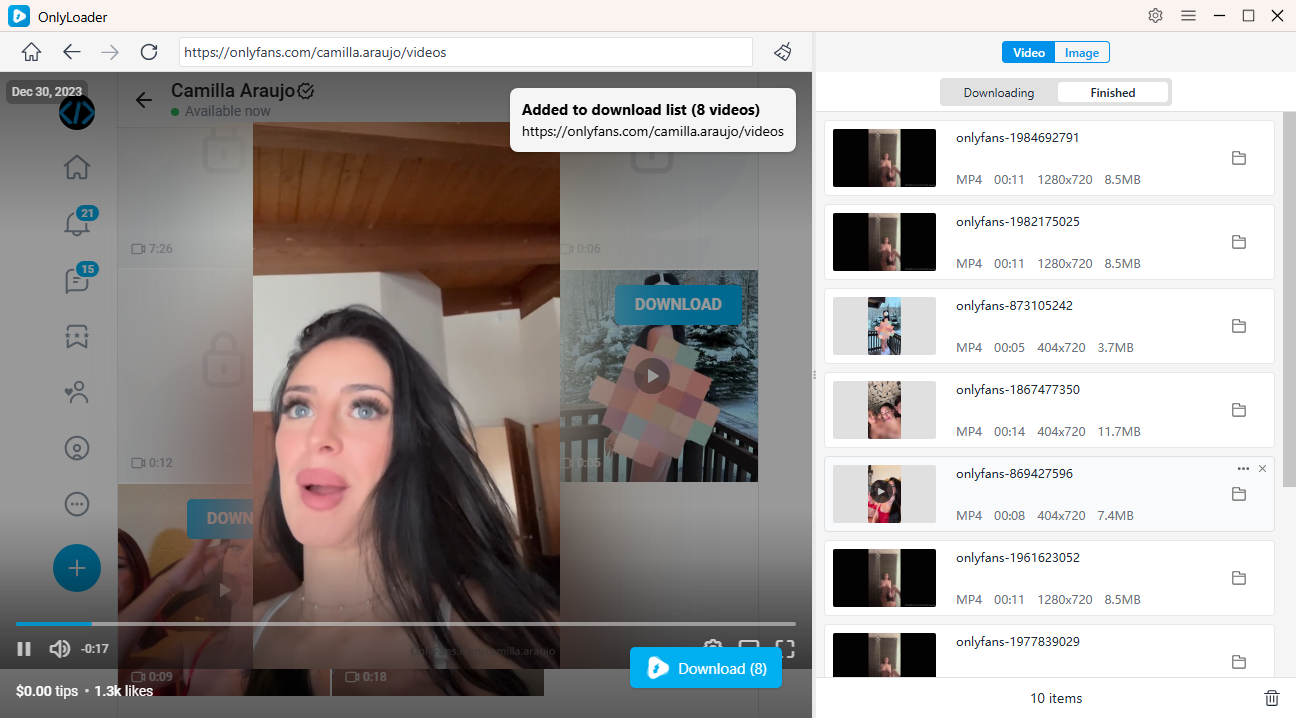
- เข้าใช้งาน OnlyFans ผ่านเบราว์เซอร์ในตัว ลงชื่อเข้าใช้ และเปิดโปรไฟล์ของครีเอเตอร์ที่คุณติดตาม
- ไปที่ส่วนวิดีโอ เลือกวิดีโอที่คุณต้องการ แล้วเลือกดาวน์โหลด โปรแกรมจะตรวจจับวิดีโอที่มีอยู่โดยอัตโนมัติ ทำให้ดาวน์โหลดวิดีโอจำนวนมากได้อย่างง่ายดาย
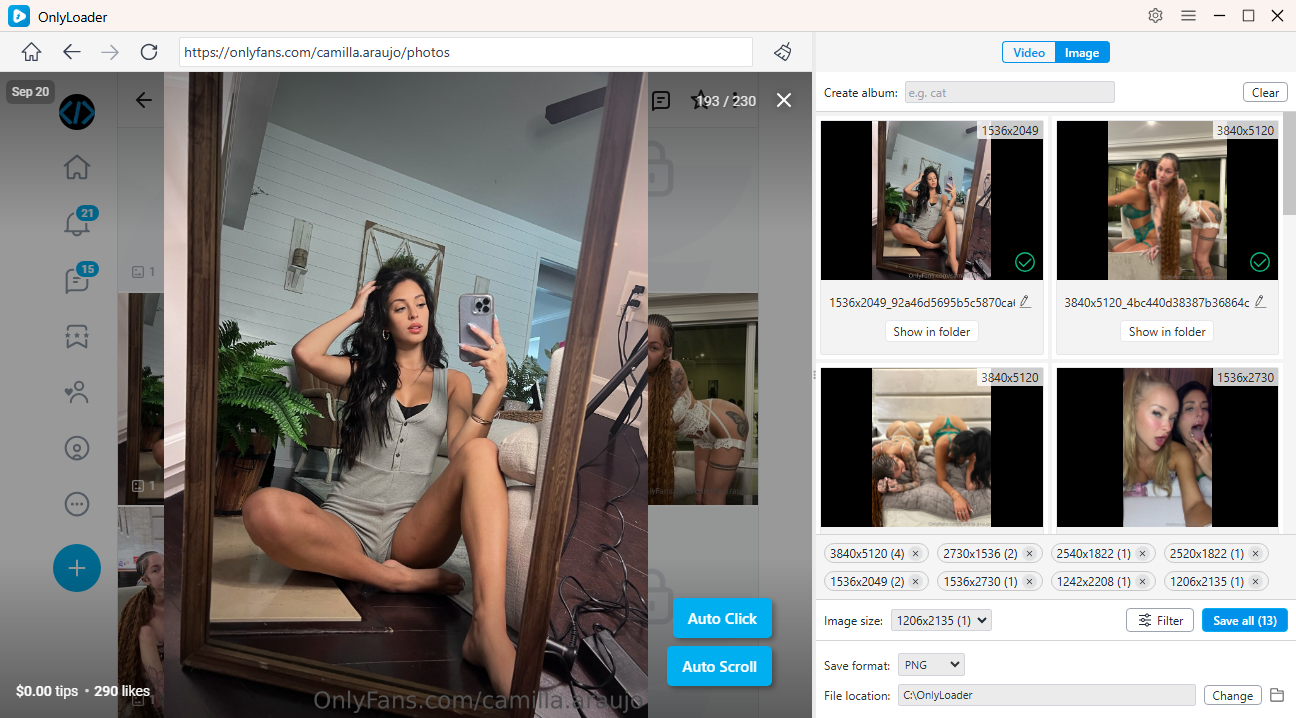
- ในการดาวน์โหลดรูปภาพ ให้เปิดใช้งานคุณสมบัติ Auto-Click เพื่อตรวจจับและดึงรูปภาพจากหน้าเว็บโดยอัตโนมัติ เลือกรูปภาพที่คุณต้องการบันทึกและดาวน์โหลดทั้งหมดพร้อมกัน
4. บทสรุป
การให้ทิปบน OnlyFans เป็นวิธีง่ายๆ ในการให้การสนับสนุนเพิ่มเติมแก่ครีเอเตอร์ โดยทั่วไปคุณสามารถเปิดโปรไฟล์ของครีเอเตอร์หรือโพสต์ที่เข้าเกณฑ์ เลือกตัวเลือกการให้ทิป ป้อนจำนวนเงินที่ต้องการ เพิ่มข้อความหากมี และยืนยันการชำระเงิน OnlyFans โดยทั่วไปจะหัก 20% ของทิป นั่นหมายความว่าครีเอเตอร์จะได้รับ 80% ของการชำระเงินก่อนหักค่าใช้จ่ายหรือภาษีอื่นๆ
สำหรับผู้ใช้ที่ต้องการเก็บรักษาสื่อของผู้สร้างที่ตนได้รับอนุญาตให้ดาวน์โหลดไว้ด้วย OnlyLoader อาจเป็นส่วนเสริมที่มีประโยชน์ วิธีการดาวน์โหลดแบบเป็นกลุ่มสามารถลดงานซ้ำซ้อนด้วยตนเองและทำให้การจัดระเบียบคลังสื่อส่วนตัวง่ายขึ้น หากคุณจัดการคอลเลกชันขนาดใหญ่ของเนื้อหาจากผู้สร้างที่เข้าถึงได้อย่างถูกต้องเป็นประจำ OnlyLoader นับว่าเป็นทางเลือกสำรองที่สะดวกสบายและน่าพิจารณา