 OnlyLoader
How to Download OnlyFans Videos on iPhone?

OnlyFans is a popular subscription-based platform where creators share exclusive videos and photos with their fans. Many users prefer to watch content offline—for convenience, travel, or to avoid buffering issues. However, OnlyFans does not provide an official download button on iPhone. Luckily, there are still several practical ways to download or save OnlyFans videos on an iPhone. In this guide, we’ll walk through realistic ways to download OnlyFans videos on iPhone, explain their pros and cons, and help you choose the most suitable method.
1. Download OnlyFans Videos Using Safari + Online Downloaders
Some online video downloaders can extract video files when you paste the OnlyFans video URL.
Steps:
- Open Safari on your iPhone, then log in to your OnlyFans account and open the video you want.
- Copy the video URL from the address bar or share menu.
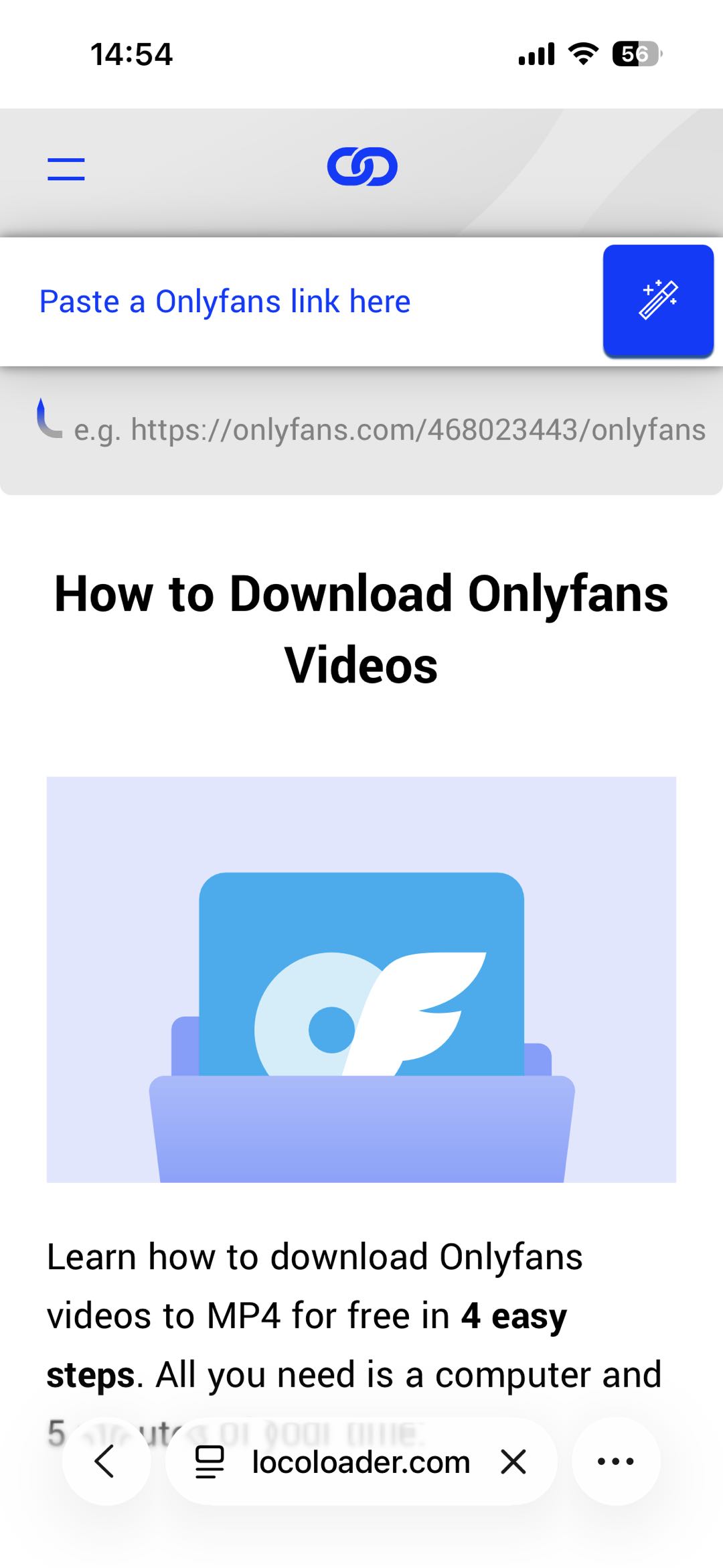
- Open an online downloader website that supports OnlyFans links (such as LocoLoader), and paste the URL and tap Download.
- Choose MP4 format and available resolution, then save the file to Files app or Photos (depending on the site).
Pros:
- No app installation required
- Works directly on iPhone
- Simple for occasional downloads
Cons:
- Many online downloader sites may fail to download OnlyFans videos
- Ads and pop-ups
- Limited video quality
- Usually one video at a time
2. Use iOS File Manager Apps (Documents by Readdle)
File manager apps with built-in browsers are more powerful than Safari.
Recommended App
- Documents by Readdle (free on App Store)
Steps:
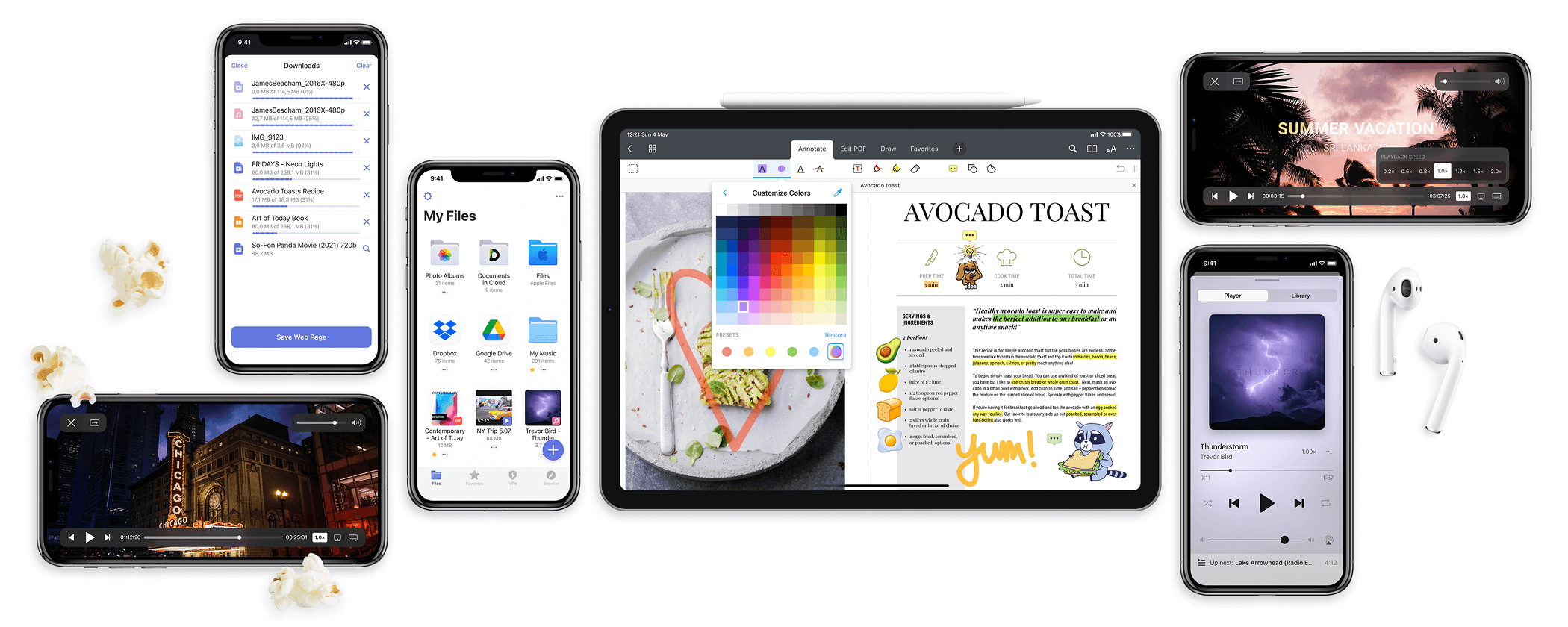
- Install Documents by Readdle from the App Store, open the app and use its built-in browser.
- Log in to OnlyFans inside the browser and play the video you want to download.
- When the app detects a downloadable stream, tap Download.
- Save the video to the app’s local storage. Move it to the Photos app if needed.
Pros:
- More reliable than Safari
- Built-in file manager
- Easy playback inside the app
Cons:
- Doesn’t work for all videos
- Detection depends on stream format
- No bulk download support
3. Screen Record OnlyFans Videos on iPhone
If downloading fails, screen recording is a universal fallback.
How to screen record OnlyFans on iphone:
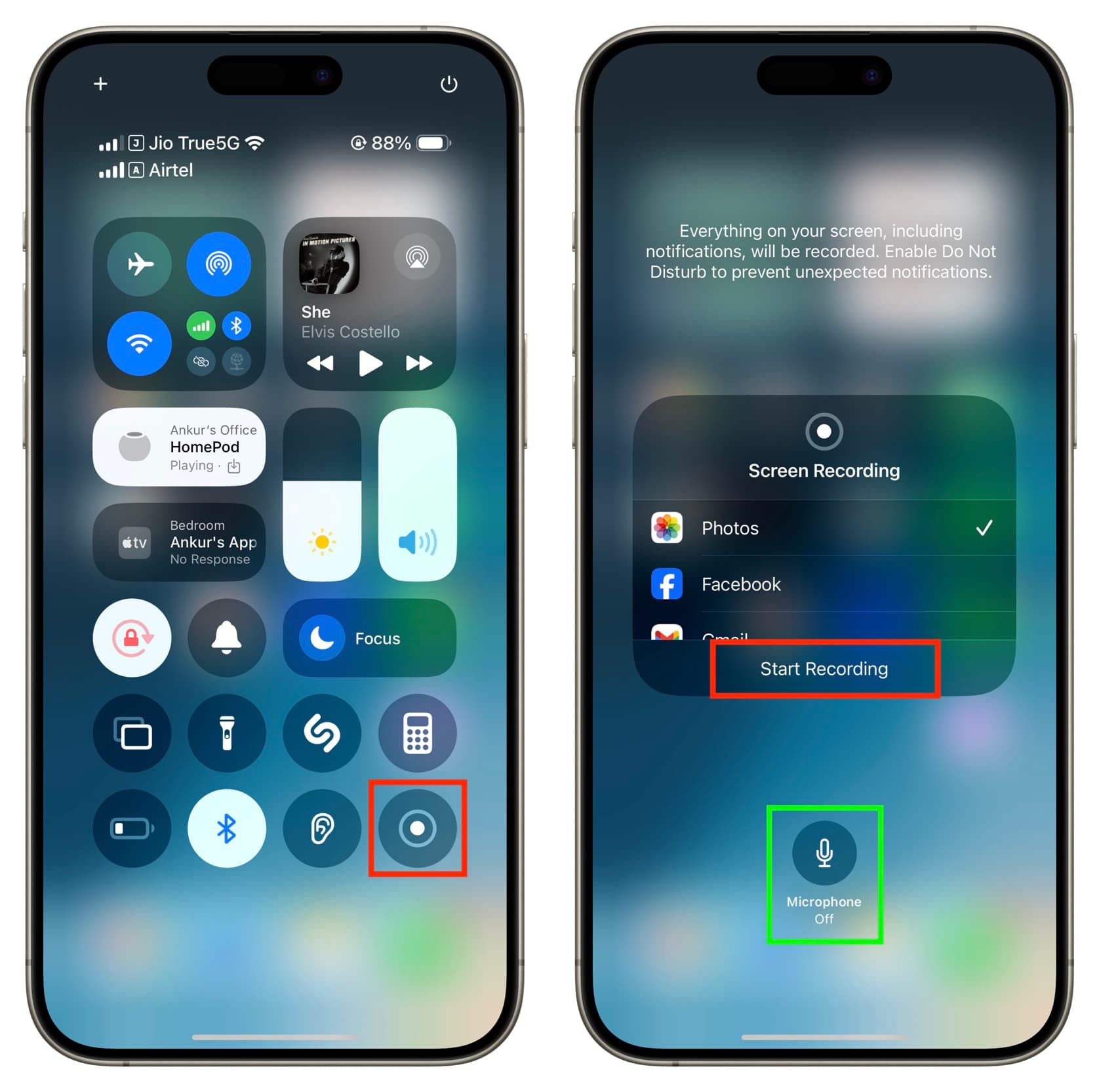
- Enable Screen Recording in:
- Settings → Control Center → Add Screen Recording
- Open OnlyFans and play the video in full screen.
- Swipe down, tap Screen Record to start recording and let the video play completely.
- Stop recording and save the file to Photos.
Pros:
- Works 100% of the time
- No third-party tools needed
- Saves directly to Photos
Cons:
- Video quality depends on screen resolution
- Time-consuming for long videos
- No bulk downloads
4. Download OnlyFans Videos on iPhone Using a Desktop (Recommended)
The most reliable way to download OnlyFans videos for iPhone is to use a desktop downloader and then transfer files to your device.
How It Works:
- Download videos on a Windows or macOS computer
- Transfer them to your iPhone via:
- AirDrop
- iCloud
- iTunes / Finder
- Files app
This approach avoids iOS restrictions entirely.
Best OnlyFans Downloader: OnlyLoader
If you download OnlyFans content frequently, OnlyLoader is the most efficient solution.
Key Features of OnlyLoader:
- Bulk download videos and photos
- Support full-resolution media (HD & 4K)
- Download entire profiles or selected posts
- Automatically click photos to extract original files
- Filter desired creator photos by file types and sizes
- Export OnlyFans media in popular video/audio and photo types
- Work on both Windows and Mac
How to Use OnlyLoader on PC:
- Install OnlyLoader
Download and install OnlyLoader on your Windows or macOS computer, launch the app once installed.
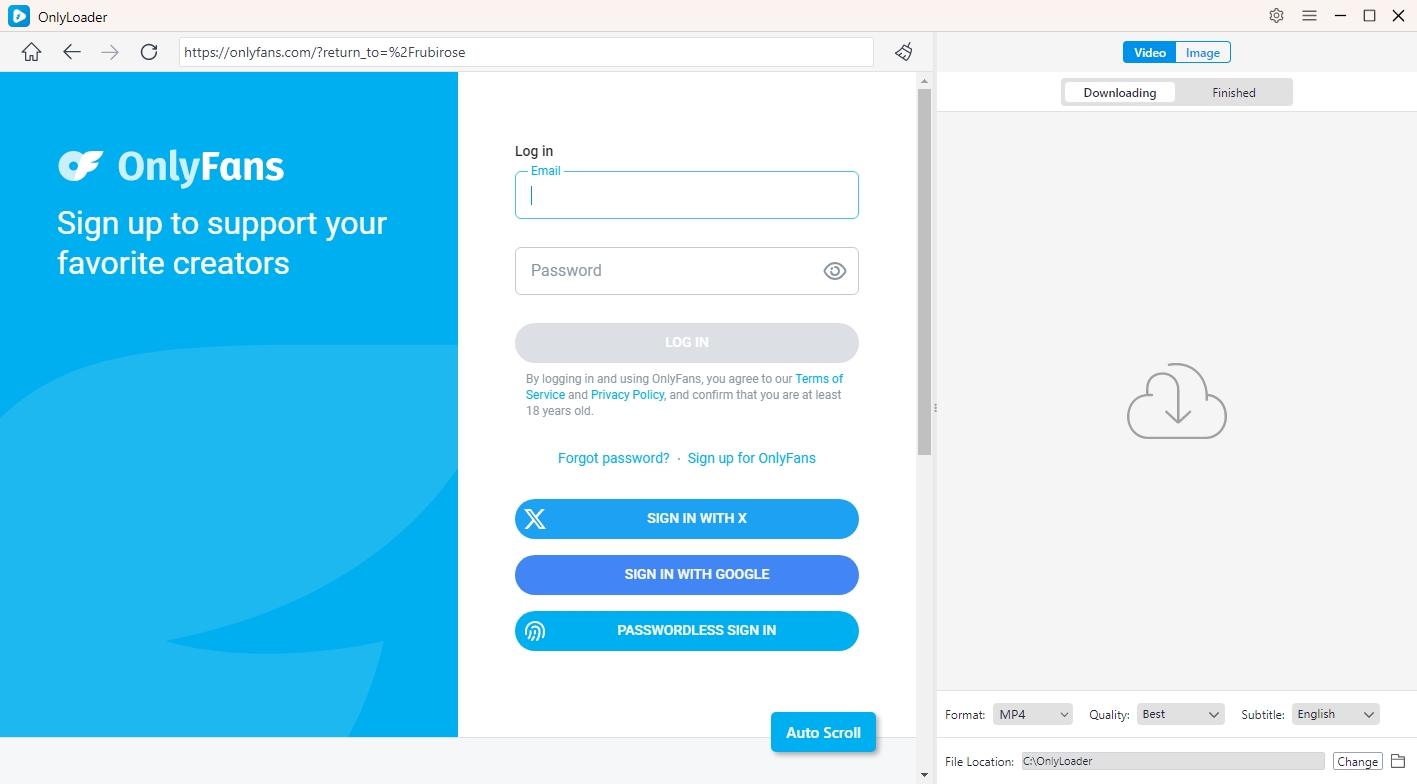
- Log In with the Built-in Browser
Open OnlyLoader’s built-in browser, sign in to your OnlyFans account, and browse to the creator profile or specific posts you want to save.
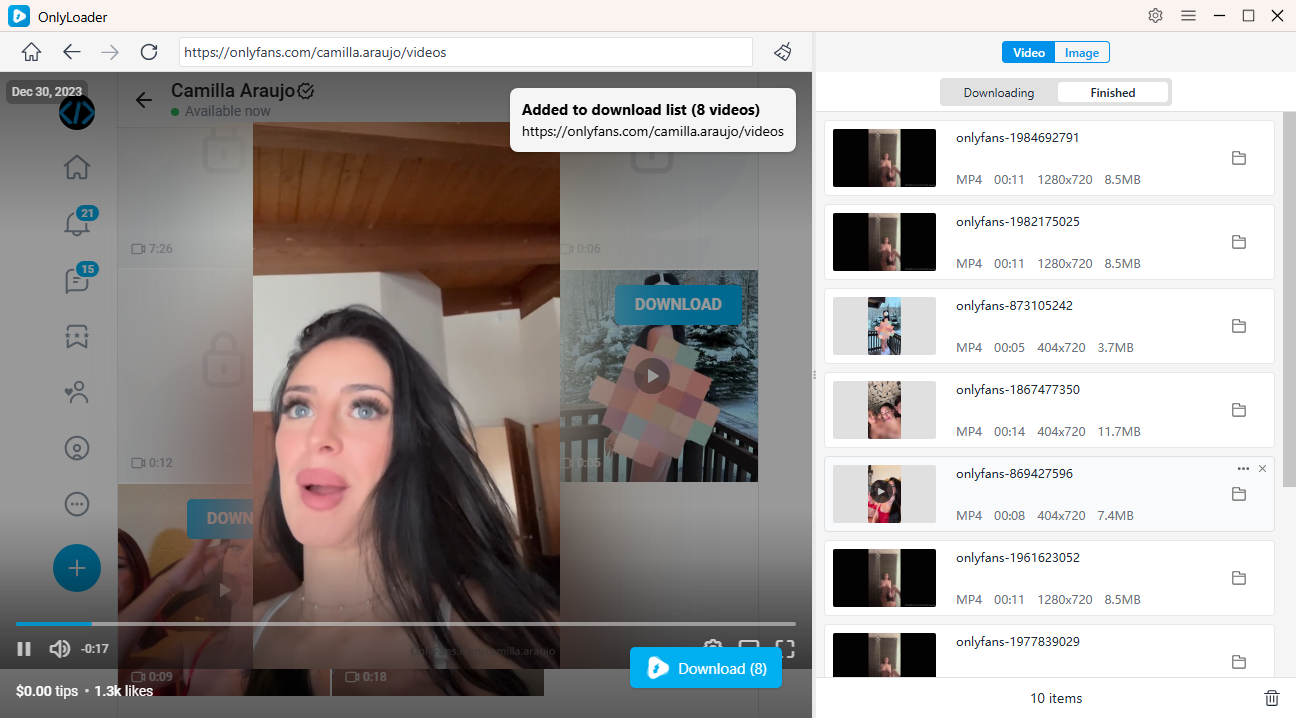
- Download Videos in Bulk
Head to the creator’s Videos section, play any video, and click the Download button. OnlyLoader will automatically scan the profile and queue all available videos for bulk downloading.
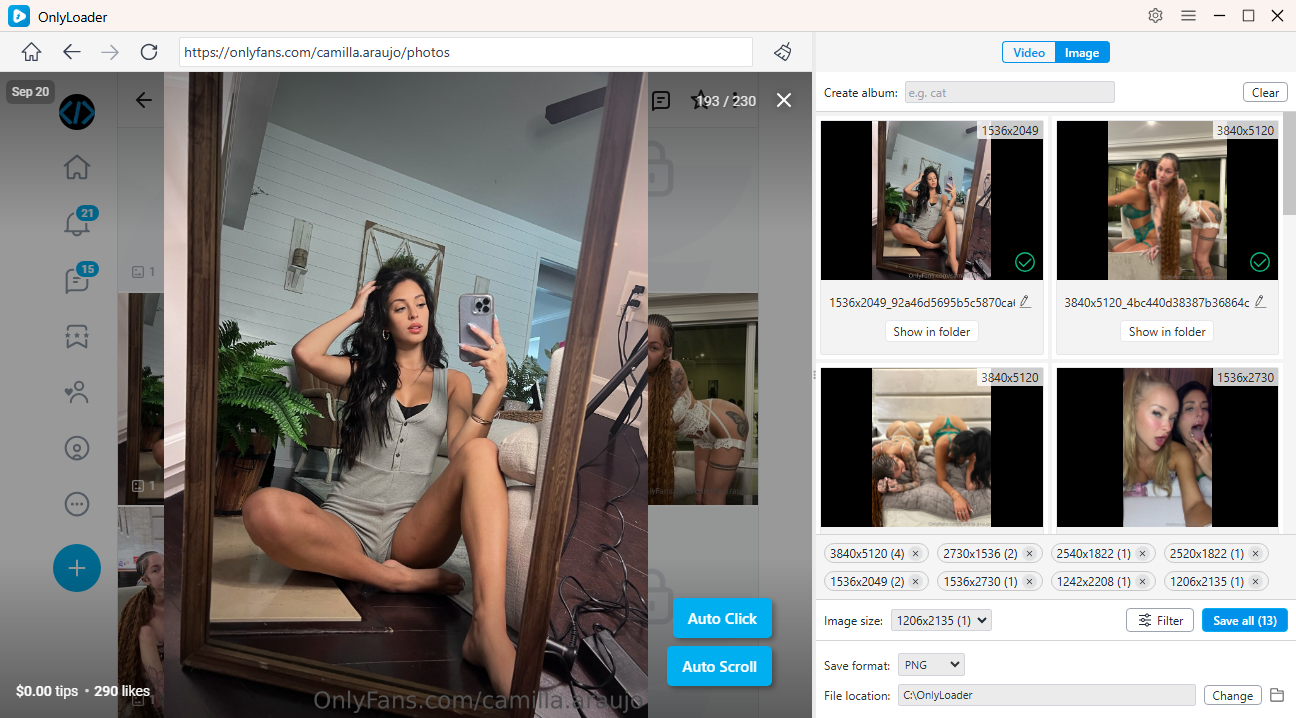
- Download Photos at Full Resolution
Switch to the Photos tab and let OnlyLoader automatically open each post to fetch the original, full-quality images. Apply filters if needed, then download everything in one click.
5. Method Comparison
| Method | Ease | Quality | Bulk Download | Best For |
|---|---|---|---|---|
| Online downloaders | Easy | Low–Medium | ❌ | One-off clips |
| Documents by Readdle | Medium | Medium | ❌ | iPhone-only users |
| Screen recording | Easy | Medium | ❌ | Short videos |
| Desktop + OnlyLoader | Very Easy | High | ✅ | Regular users |
6. Conclusion
Downloading OnlyFans videos on iPhone isn’t as straightforward as on desktop, but it’s still possible using the right methods. Online downloaders, file manager apps, and screen recording can work for occasional downloads, though each comes with limitations.
For users who want high quality, bulk downloads, and long-term convenience, the best solution is to download videos on a computer using OnlyLoader and then transfer them to your iPhone. It bypasses iOS restrictions, preserves original quality, and saves significant time.