 OnlyLoader
OnlyFans Videos Not Playing? Try These Fixes

OnlyFans is widely used for accessing creator videos, photos, and other subscriber-only content, but sometimes a video may refuse to play, remain stuck on loading, show a blank screen, or keep buffering.
If your OnlyFans videos won’t play, there are several simple troubleshooting methods you can try. This guide covers the most useful fixes and also explains how to back up OnlyFans videos you are authorized to download for offline viewing.

1. How to Fix OnlyFans Videos Won’t Play?
1) Check Your Internet Connection
OnlyFans videos require a stable internet connection, particularly when streaming higher-quality content.
Try opening another website or playing a video on another platform. If your connection is slow, restart your router or switch between Wi-Fi and mobile data, then reload OnlyFans.
2) Refresh the OnlyFans Page
A temporary webpage or video-player error can prevent a video from loading correctly.
Simply refresh the OnlyFans page and wait for it to load completely before playing the video again. On a computer, you can also close the OnlyFans tab and reopen it.
3) Clear Browser Cache and Cookies
Old or corrupted browser data can cause websites and embedded video players to malfunction.
Open your browser settings, locate the privacy or browsing-data section, and clear cached files and cookies. Restart the browser afterward, sign back into OnlyFans, and try the video again.
4) Disable Browser Extensions
Ad blockers, privacy extensions, script blockers, and other browser add-ons may interfere with scripts required by the OnlyFans video player.
Temporarily disable your extensions and reload OnlyFans. If the video starts playing, enable the extensions one at a time to identify which one is causing the problem.
5) Turn Off Your VPN or Proxy
A slow or problematic VPN server can affect video streaming and cause OnlyFans videos to buffer or fail to load.
Temporarily disconnect your VPN or proxy and reload the video. If this solves the issue, switch to a faster or more reliable server when reconnecting.
6) Update or Switch Your Browser
An outdated or incompatible browser may prevent OnlyFans videos from loading or playing properly. Update your current browser to the latest version, restart it, and try playing the video again. If the issue continues, switch to another modern browser such as Chrome, Firefox, Edge, or Safari to see if the video works there.
7) Enable JavaScript and Cookies
Disabling JavaScript or blocking essential cookies may prevent certain OnlyFans features from functioning properly.
Check your browser’s site settings and make sure JavaScript and necessary cookies are allowed. Reload OnlyFans afterward and test the video.
8) Log Out and Sign Back In
Your OnlyFans session may have expired or been affected by a temporary login issue.
Log out of your account, close your browser, reopen it, and sign in again. Then locate the video and check whether it plays normally.
9) Check Your Subscription or Content Access
If the problem only affects videos from one creator, check whether you still have access to that content.
Make sure your subscription is active and that you’re signed into the correct OnlyFans account. For purchased or pay-per-view content, confirm that the video is still available to your account.
10) Restart or Try Another Device
Temporary device problems can also interfere with browser-based video playback.
Restart your phone or computer and try again. You can also open OnlyFans on another device to determine whether the issue is limited to your current device.
2. Bonus: Back Up / Download OnlyFans Videos for Offline Viewing with OnlyLoader
If you have a large collection of OnlyFans videos that you are authorized to save, streaming every video online may not always be convenient. Network problems can cause buffering, and managing many videos through individual posts can also become time-consuming.
In this case, you can use OnlyLoader to save authorized OnlyFans media to your computer for offline viewing.
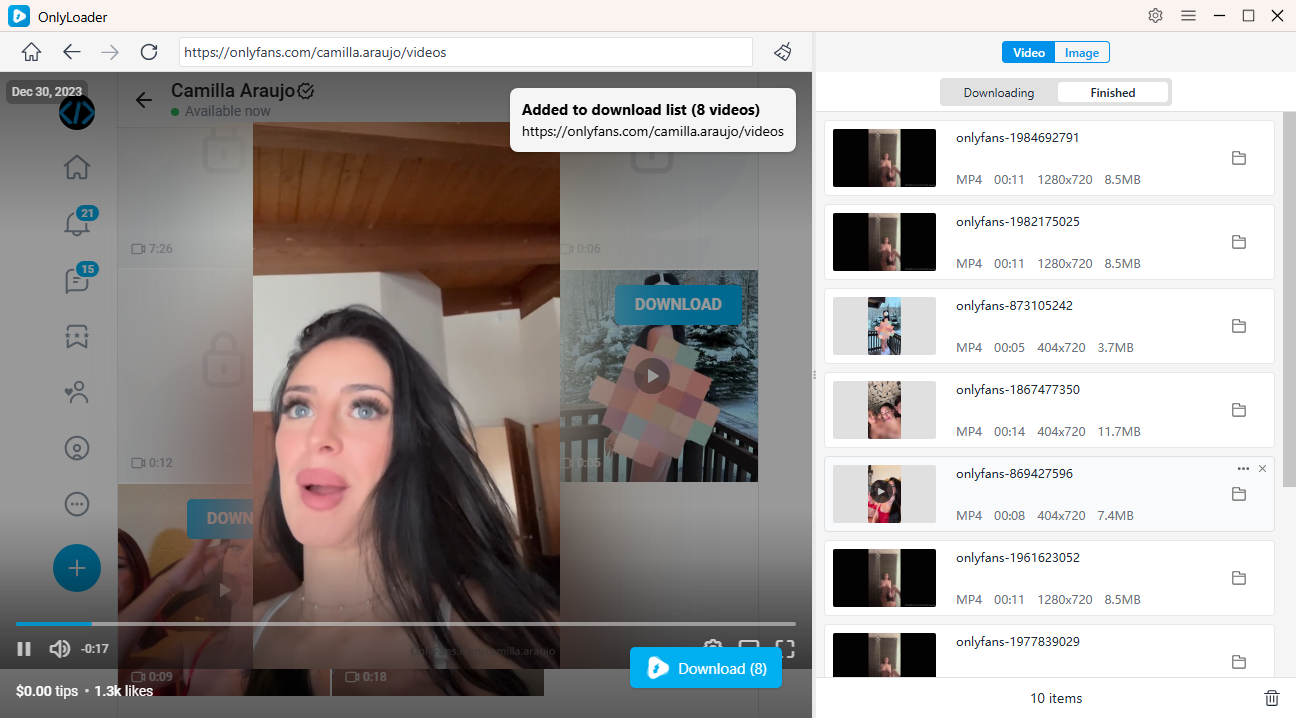
OnlyLoader is a dedicated desktop downloader designed to handle OnlyFans videos and images. Instead of manually dealing with videos one by one, its built-in browser can access content available through your account and provide batch-oriented downloading tools.
Key features of OnlyLoader:
- Download multiple OnlyFans videos and images at once.
- Browse creator profiles and access available media directly within software.
- Support available resolutions from 720p up to 4K/8K.
- Support video/audio formats including MP4, MOV, MKV, AVI, MP3, M4A, and more.Save OnlyFans images in full size with formats such as PNG, JPG, and WebP.
- Filter images, create albums, and choose the save location.
How to download OnlyFans videos with OnlyLoader:
- Set up OnlyLoader on your Windows or Mac, and open the application.
- Log in to OnlyFans within OnlyLoader using your authorized account to browse the videos you can access.
- Head to the Videos section and play your preferred video. OnlyLoader will identify the available media so you can select and download all the videos of the Creator at once.
3. Conclusion
When OnlyFans videos won’t play, start with simple fixes such as checking your internet connection, refreshing the page, clearing browser data, disabling extensions, turning off your VPN, or switching browsers. You can also log back into your account, verify your subscription or content access, and restart your device.
If you also want a more convenient way to manage OnlyFans videos you are authorized to save for offline viewing, OnlyLoader is worth considering. With its built-in browser, bulk video detection and downloading, format and resolution options, and support for Windows and Mac, OnlyLoader can make managing a larger authorized OnlyFans media collection much easier.